Purpose – From here, you can enter students’ marks for exams, assignments, and assessments, ensuring accurate and up-to-date academic records.
> Follow these steps:
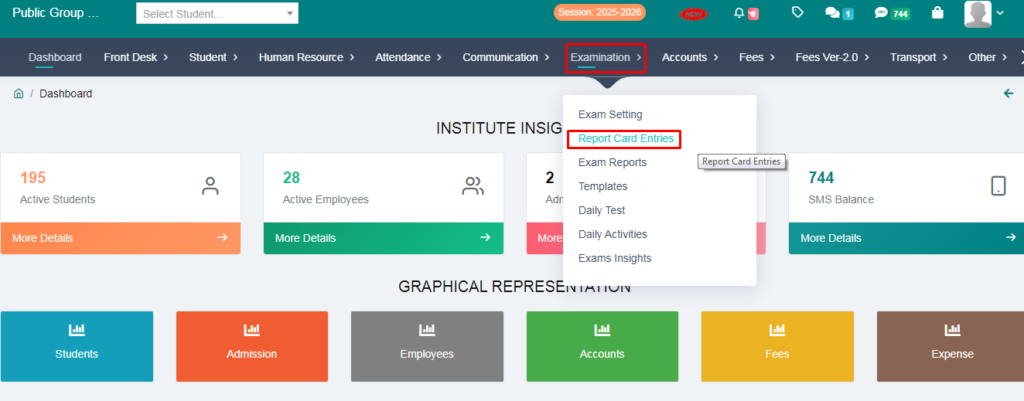
1. Go to Examination Option
2. Click on Report Card Entries
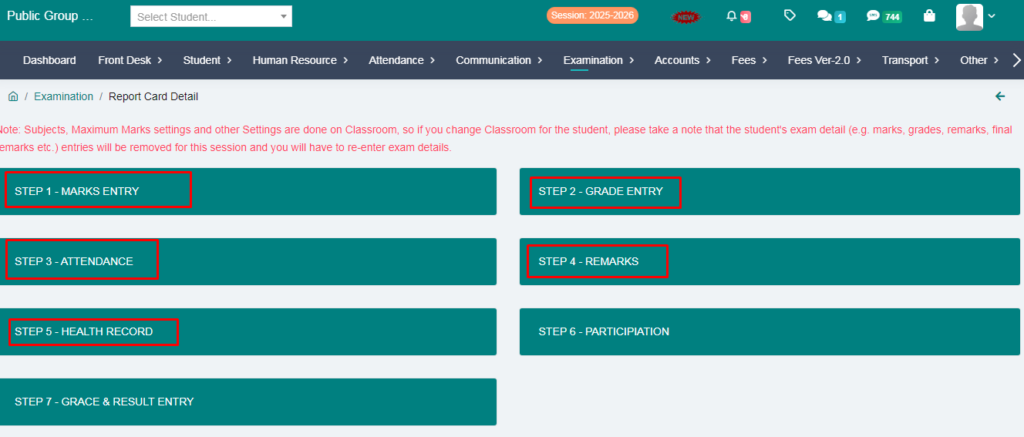
3. You will get option to Enter Marks,Grade,Attendence,etc:
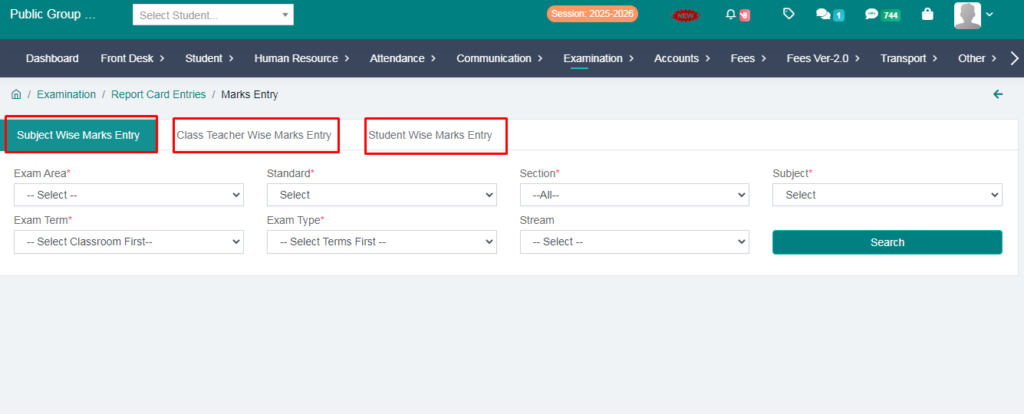
4. Go to the Marks Entry & You will get 3 option here:
> Subject wise Marks Entry:
> Class teacher wise Marks Entry:
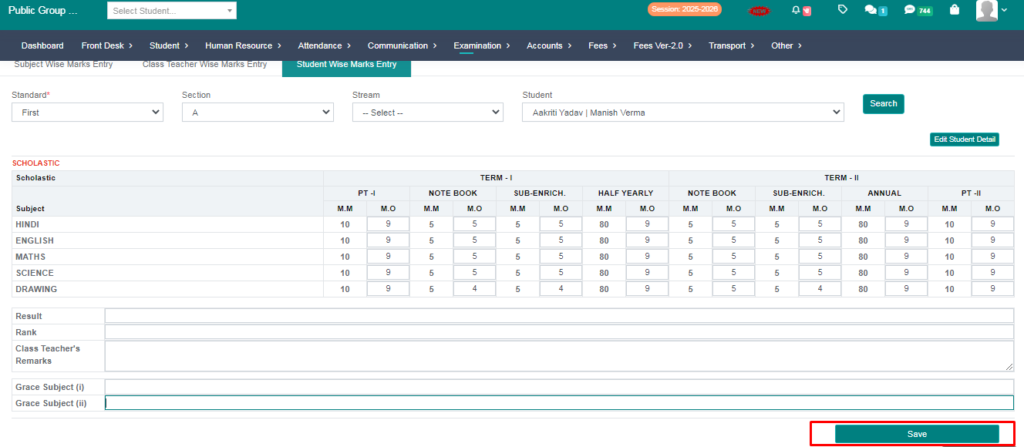
> Student Wise Marks Entry:
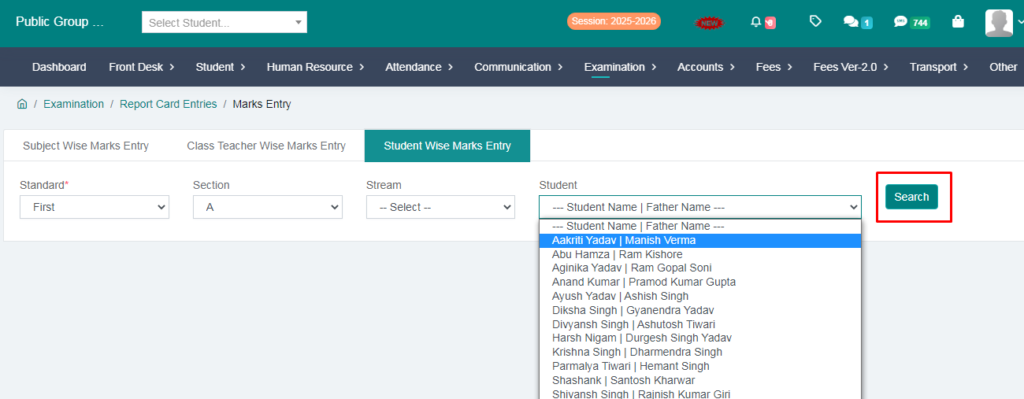
5. Click on Student wise Marks Entry:
> Fill the form and go to search option:
> Now you can add marks and click on save button:
6. Go to Examination Option
> Click on Report Card Entries:
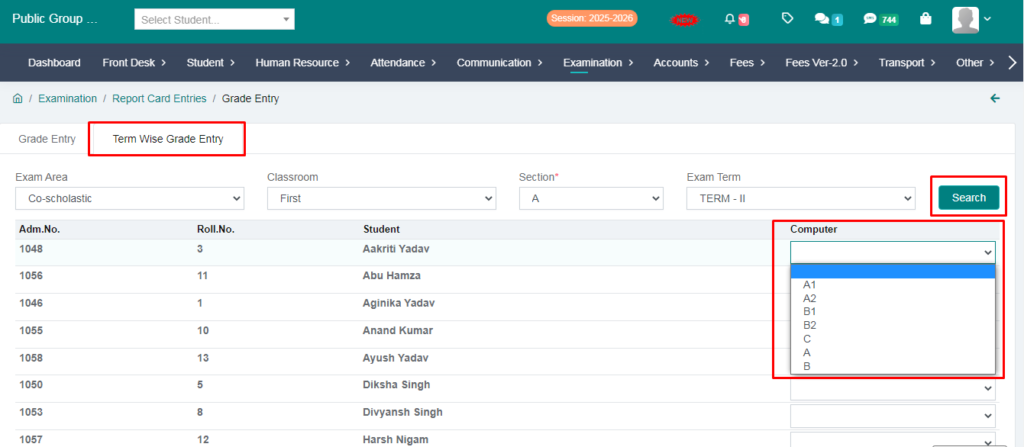
> Go to Grade entry:
> Click on term wise Grade Entry:
> Fill the form and Go to search option:
> You can add Grade and Click on the save button.
7. Go to Examination Option:
> Click on Report Card Entries:
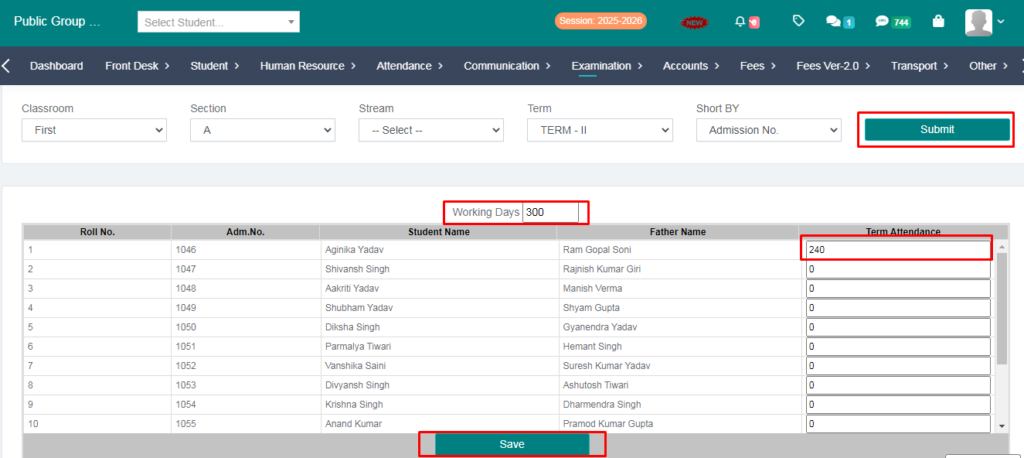
> Go to Attendence:
> Fill the form and Click on the submit button:
> You can add Working days and Student Attendence:
> Click on the save button,Your attendence is saved:
Your Marks and Grade have been Entered: