Purpose – From here, you can add and manage your school inventory, including all items, quantities, and details, to maintain accurate records.
> Follow these Steps :
1.Go to Other Module.
2.Click on Inventory.
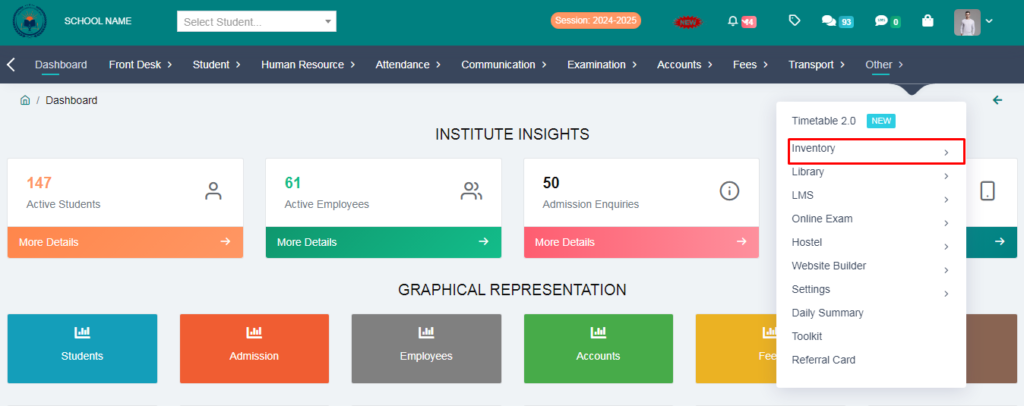
3.Click on Inventory Setting.
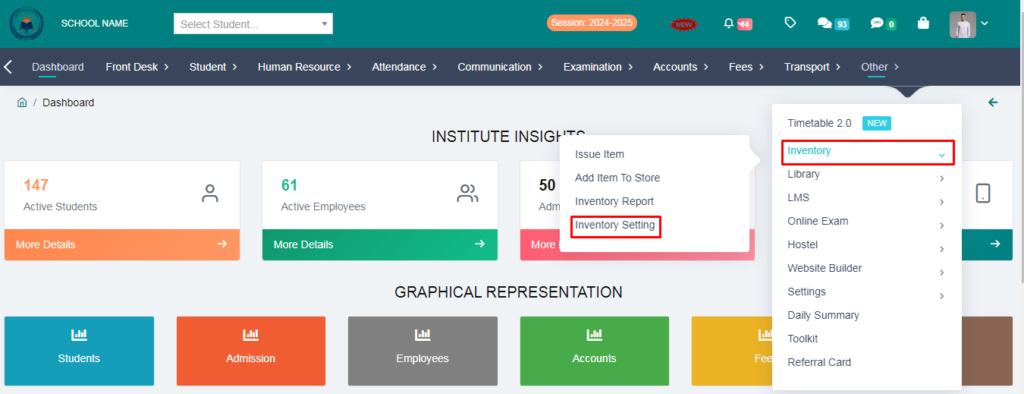
4. You will see four steps here:
> Store type.
> Item Category.
> Item Master.
> Supplier.
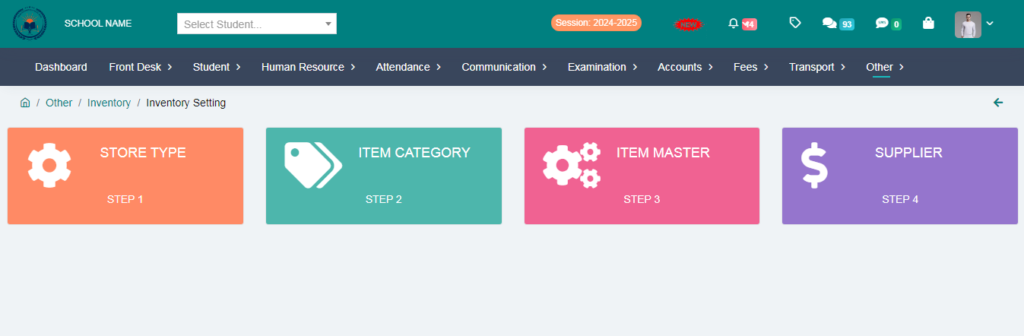
> Click on Store Type.
> Fill the form & Click on Submit Button.
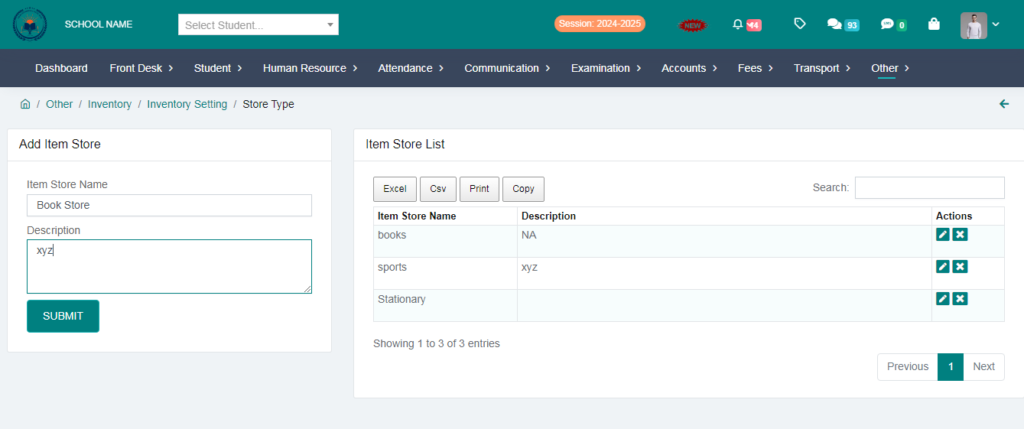
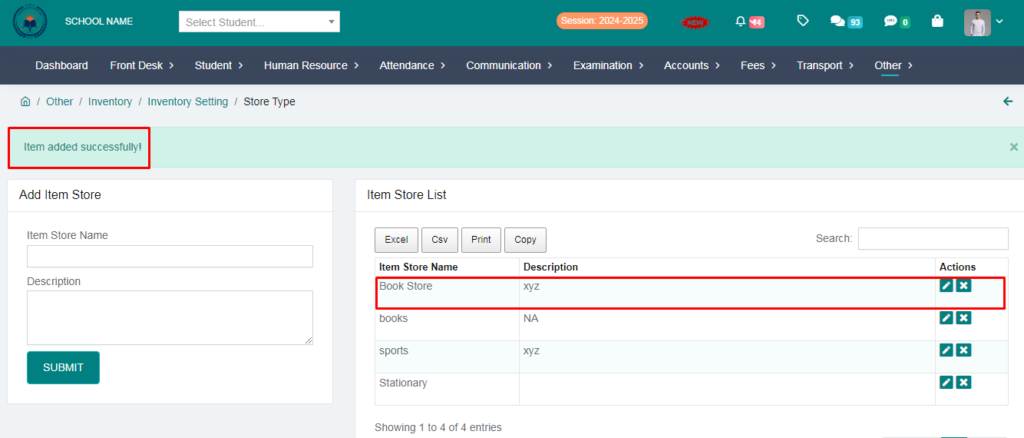
Store item added succesfully.
> Click on Item Category.
> Fill the form & Click on Submit Button.
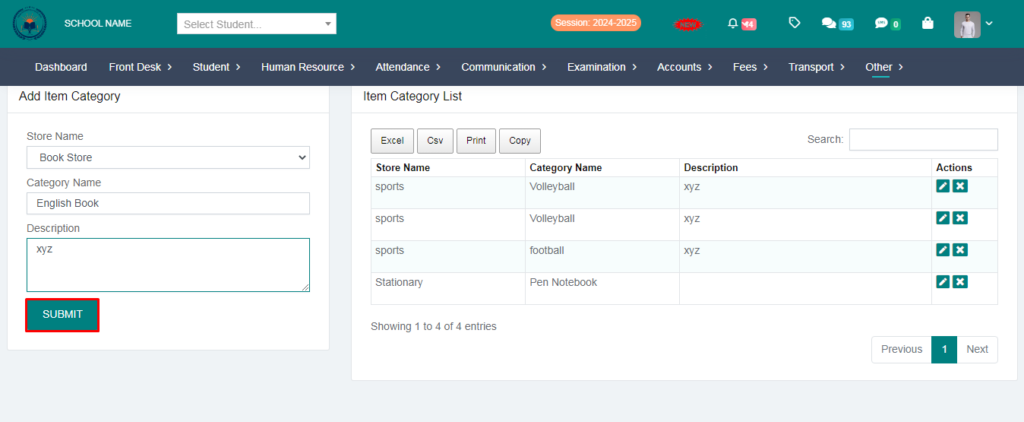
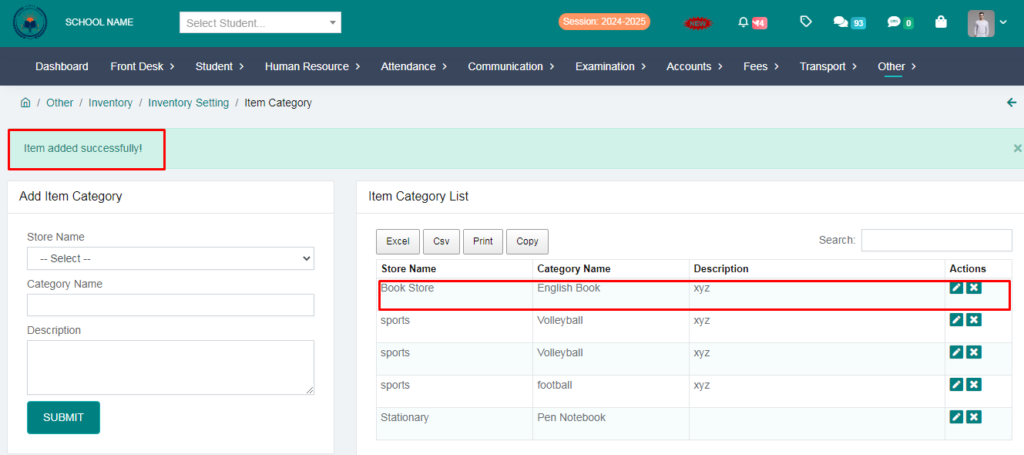
Store category added succesfully.
> Click on Item Master.
> Fill the form & Click on Submit Button.
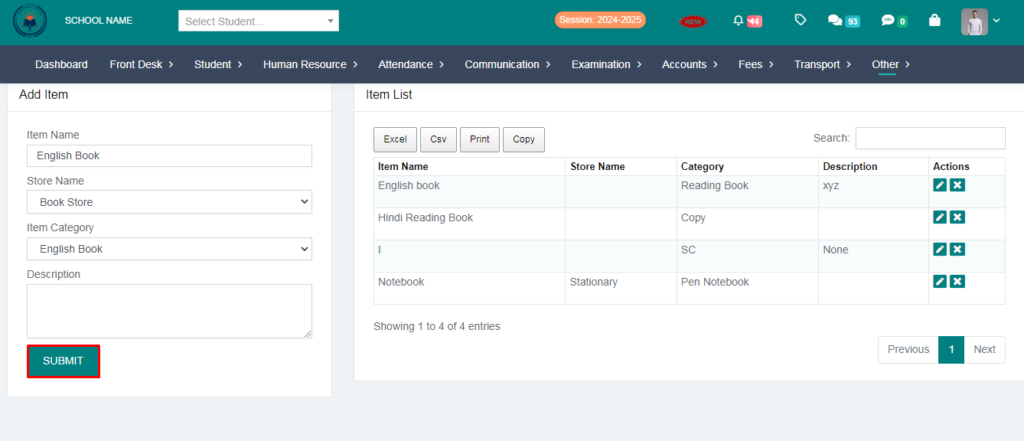
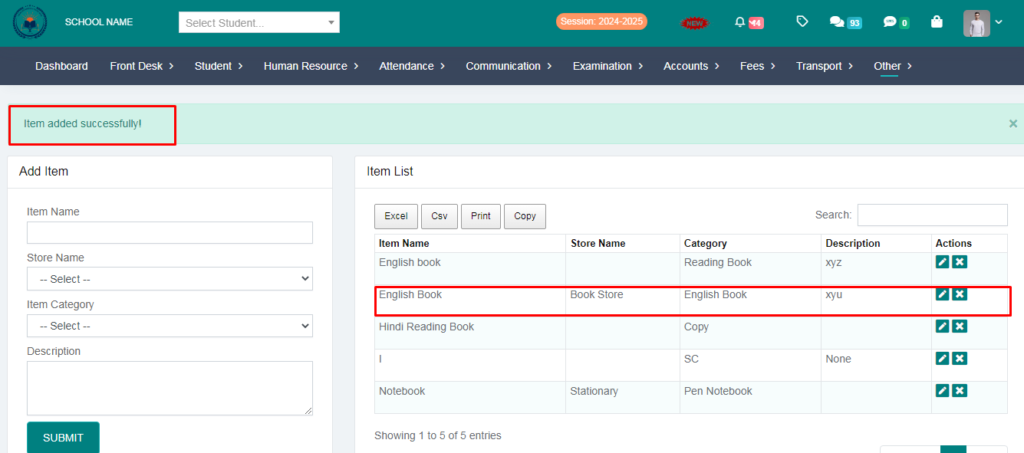
Item Master added succesfully.
> Click on Supplier.
> Fill the form & Click on Submit Button.
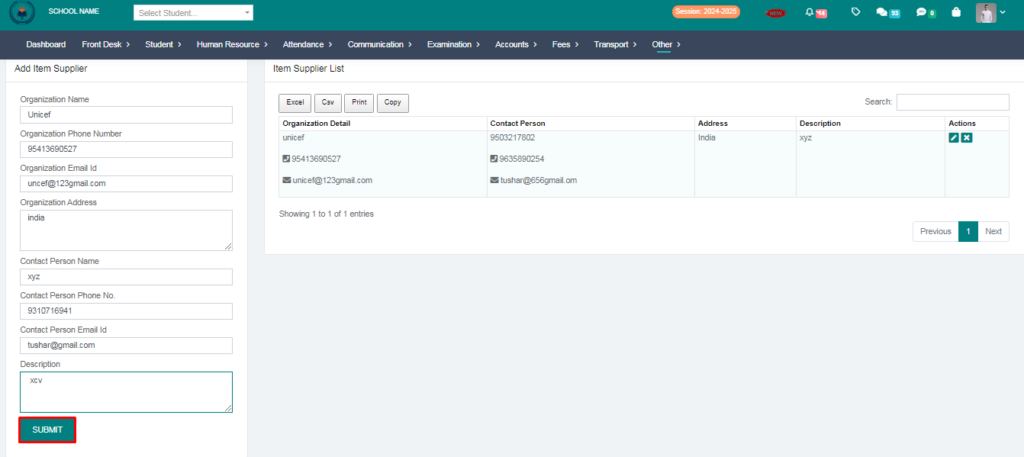
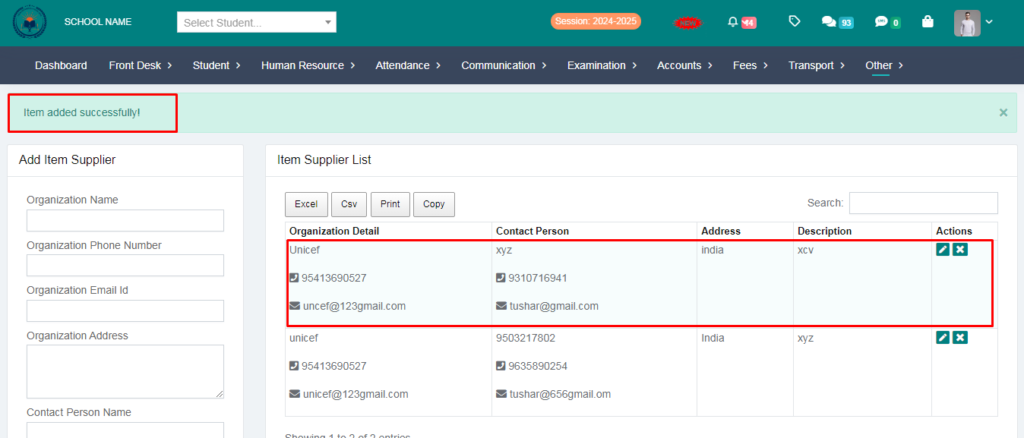
Supplier added succesfully.
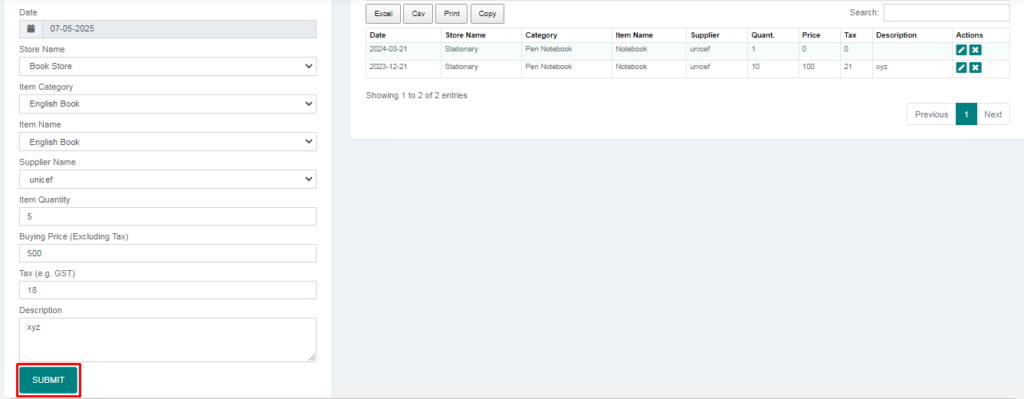
5. Click on Add item to store.
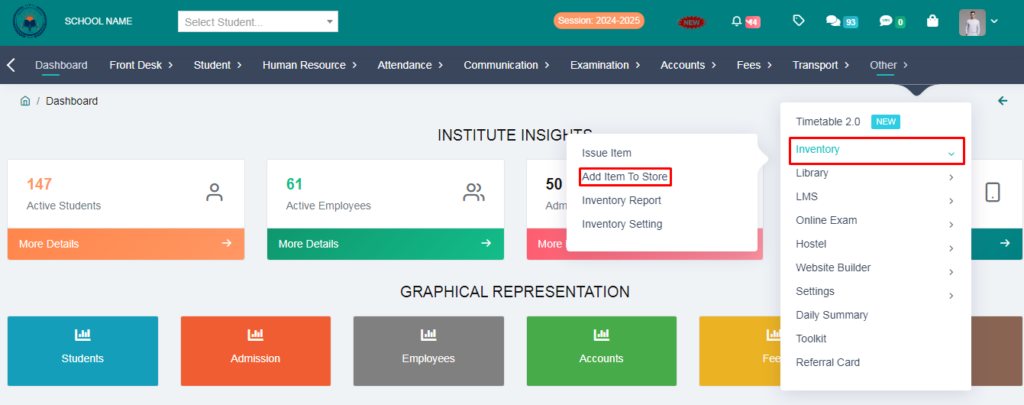
> Fill the form and click on submit button.
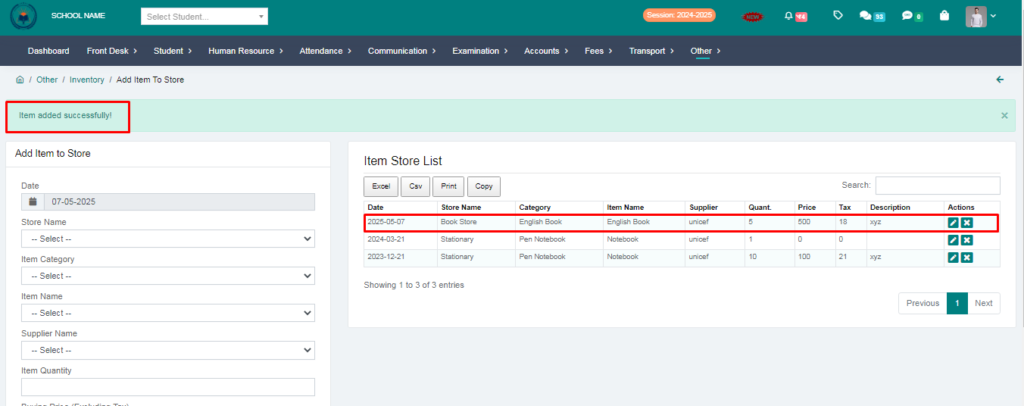
Item added succesfully.
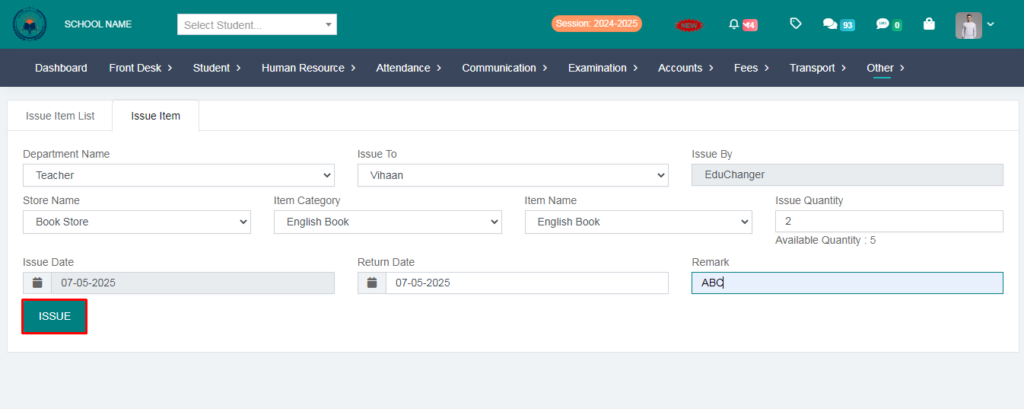
6. Click on Issue item.
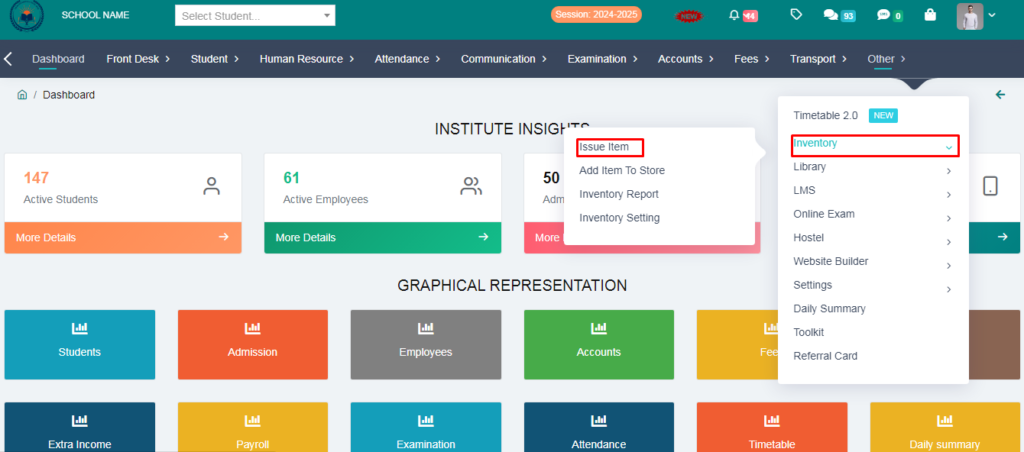
> Click on issue iteam.
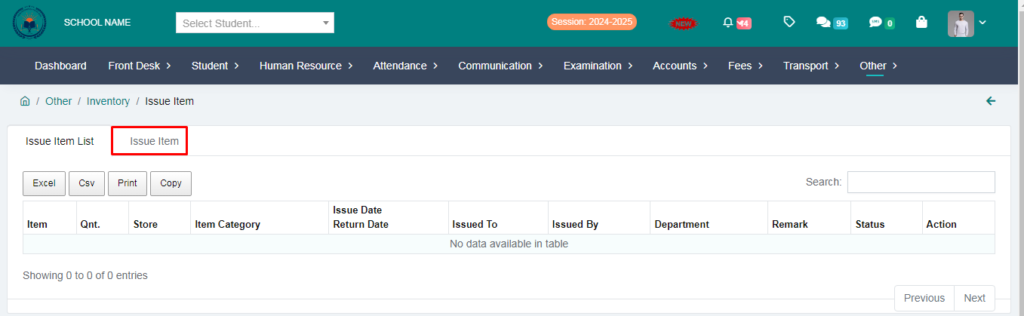
> Fill the form and click on submit button.
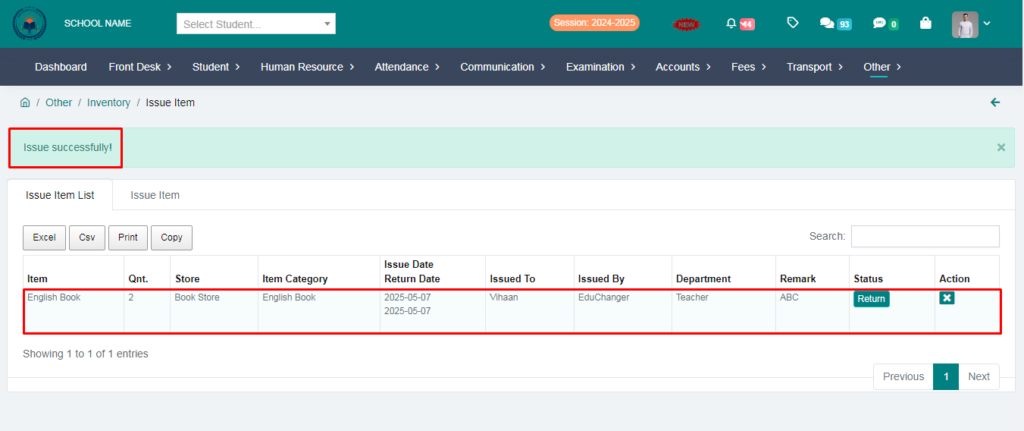
Inventory Added Succesfully.