> Follow the steps below to send homework to students:
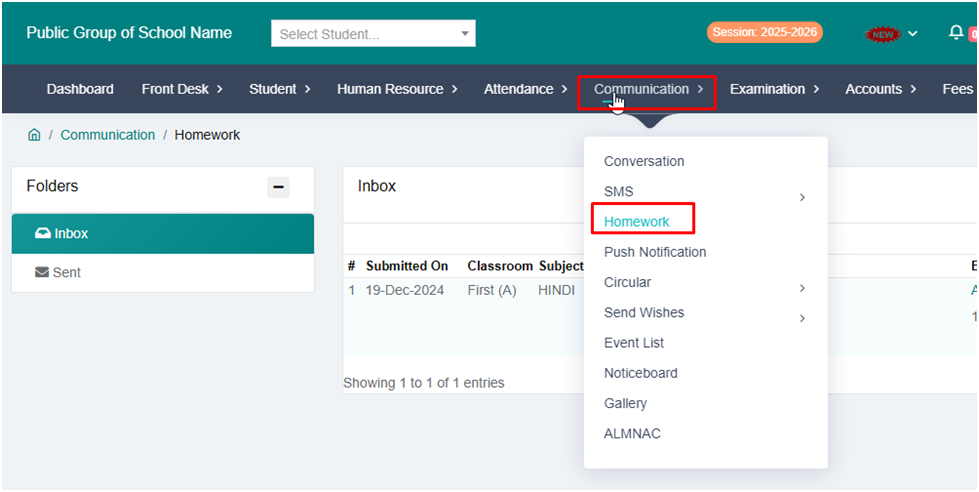
1. Navigate to Communication
Go to the Communication option in the main menu of the software.
Click on Homework.
2. Go to Send Homework
In the Homework section, click on the Send Homework option.
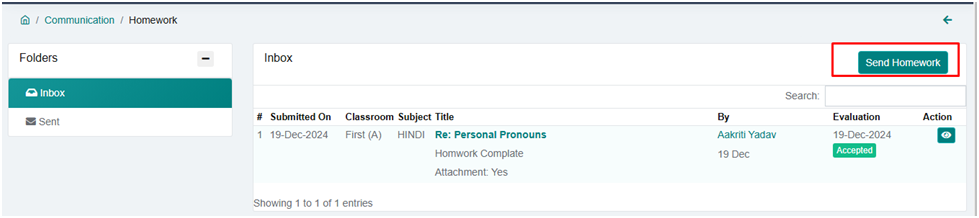
You will now see a form to fill in the required details step by step.
3. Follow These Steps
1. Select Standard
Choose the class for which the homework needs to be sent.
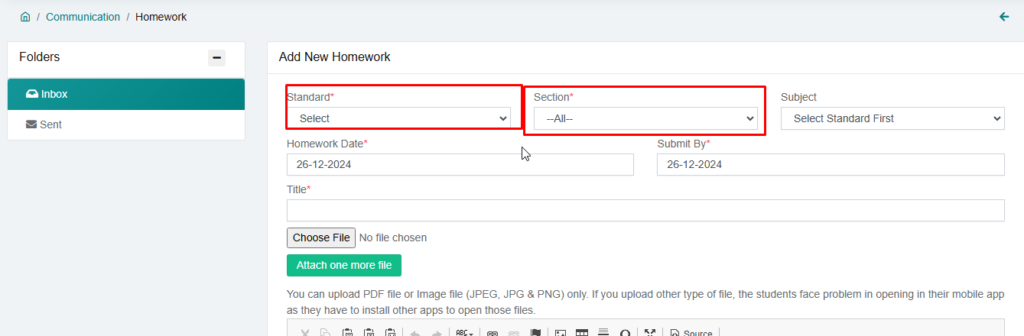
2. Select Section
Select the section (e.g., A, B, C).
3. Select Subject
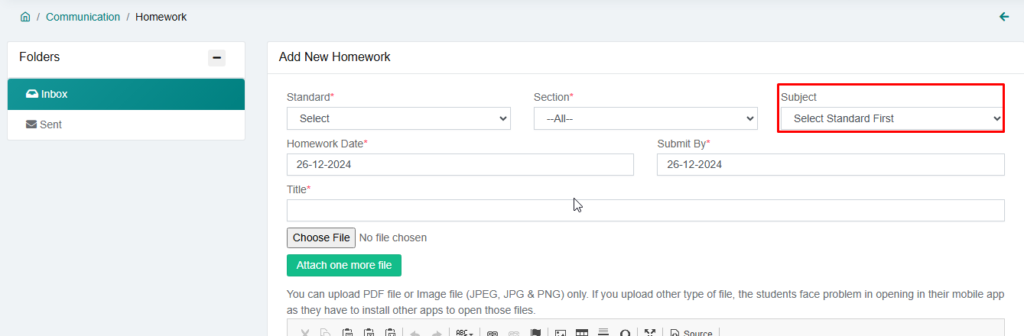
Choose the subject for which the homework is being assigned.
4. Set Homework Date
Set the date for the homework.
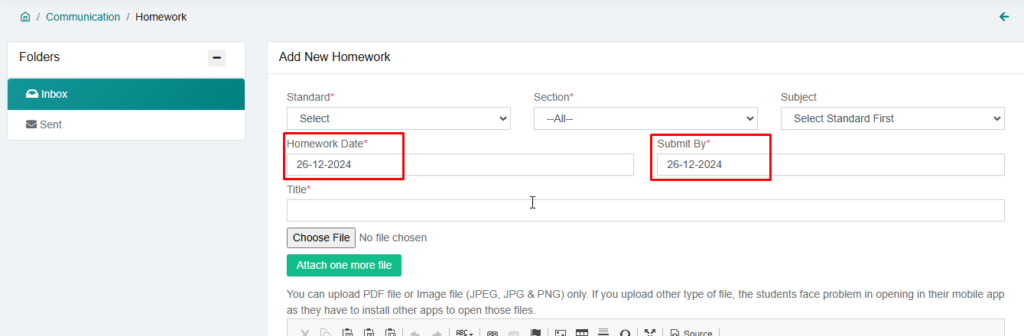
5. Set Submission Date
Specify the deadline by which students must submit the homework.
6. Add a Title
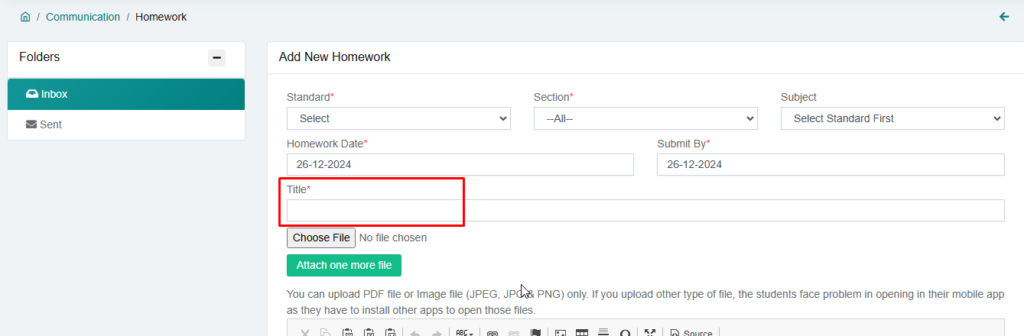
Enter a title for the homework (e.g., “Math Assignment 1”).
7. Attach Files (if needed)
Click on the Choose File button to upload any supporting documents (e.g., PDFs, JPGs, PNGs).
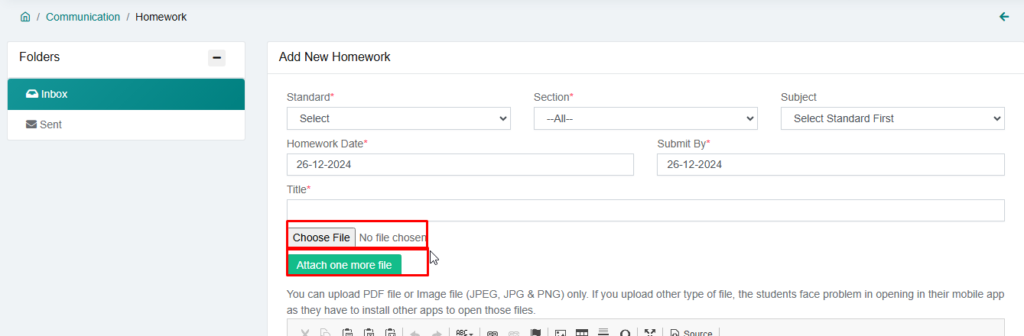
If you want to upload more than one file, click on the Add More Files button.
8. Add Notes (Optional)
Enter any additional notes or instructions related to the homework in the Notes section.
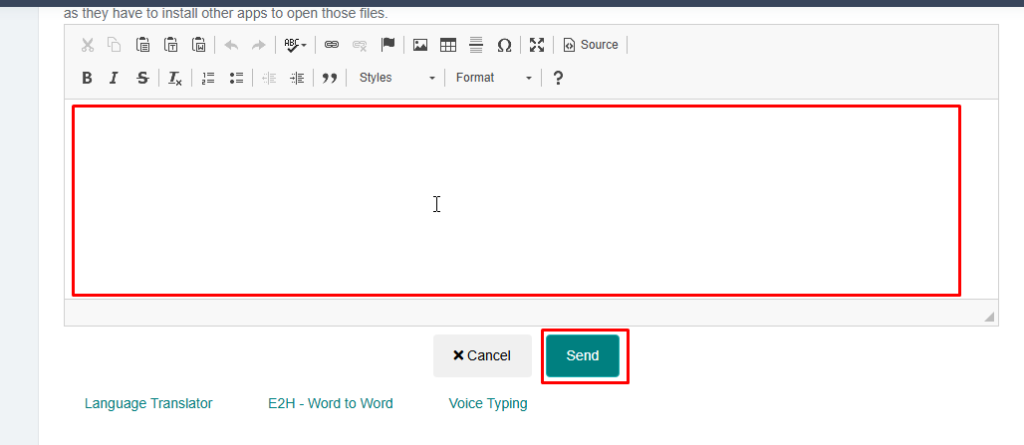
4. Send Homework
After filling in all the details, click on the Send button.
The homework will be successfully sent to the students.
Important Notes:
Double-check the selected class, section, and subject before submitting.
In case of errors, you can edit the homework after submission.
If you face any issues while following these steps, please contact our support team for assistance.