Purpose – When you open your account for the first time, the most important step is to complete the Institute Settings and Data Setup, ensuring that all essential information about your school, departments, sessions, and modules is properly configured for smooth operations.
> Follow these Steps:
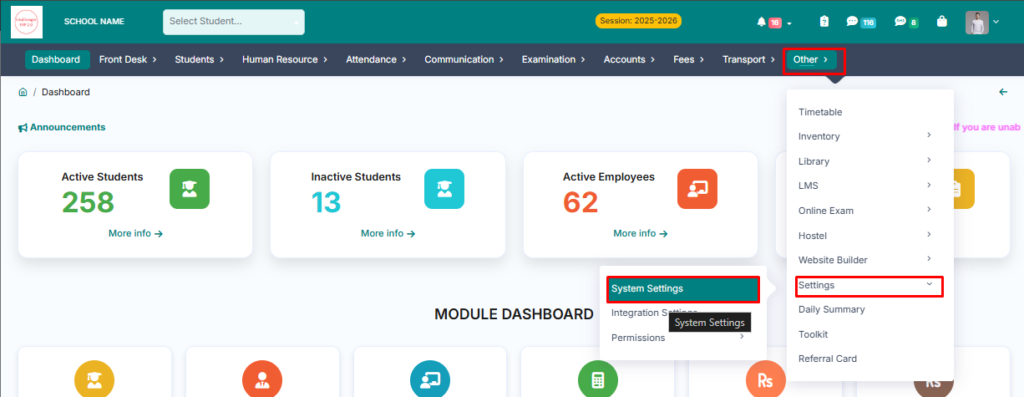
1. Go to Other Module.
2. Click on System Settings.
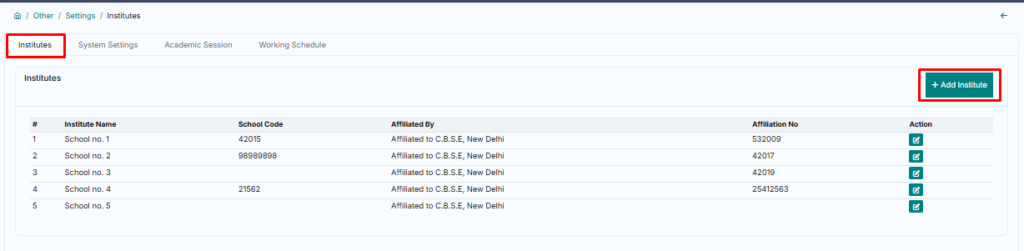
3. Go to Institutes and add your institute by clicking on Add Institute.
4. Fill the form and click on submit button.
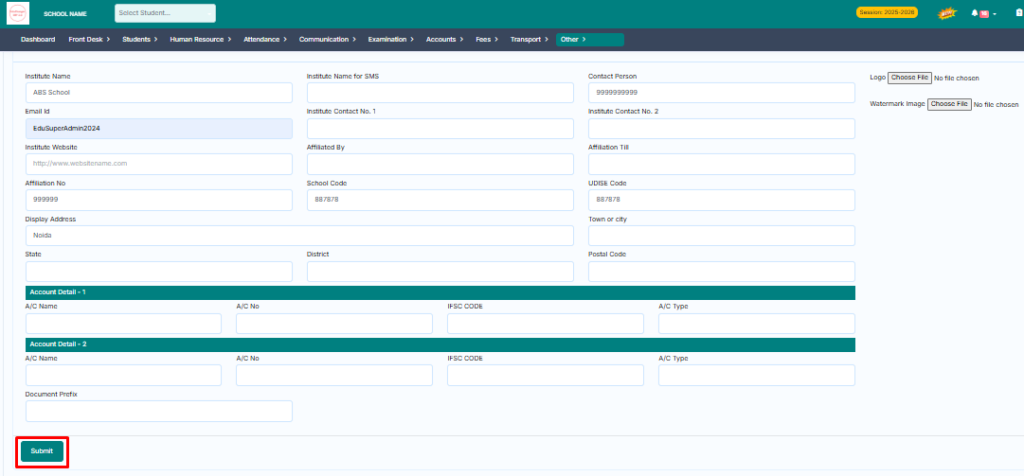

Congrats your institute setting has been done.
> Now let’s move on to our next step of employee data upload.
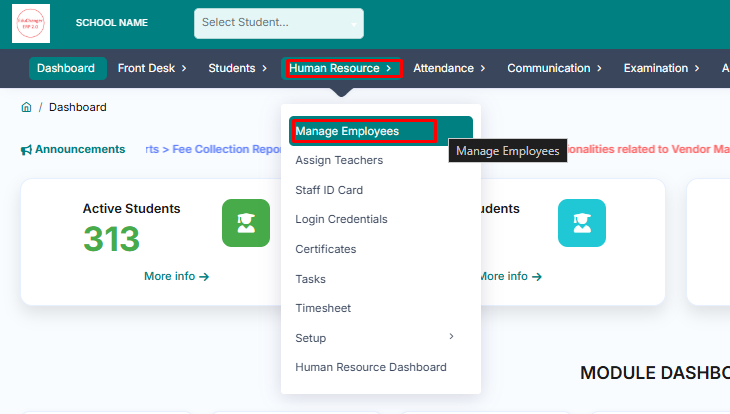
5. Go to Human Resource.
6. Click on Manage Employee.
7. Click on Import Staff.
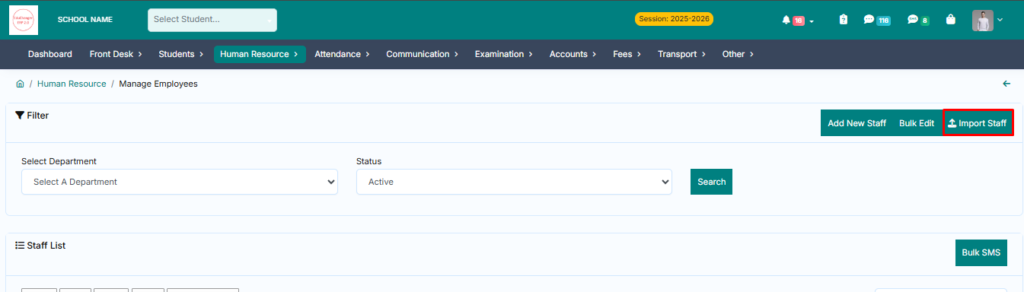
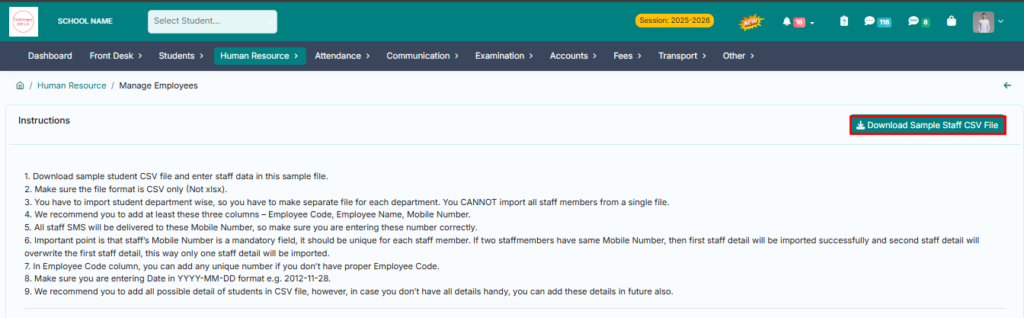
> Downloand staff sample file and fill your staff data e.g , Teacher Name , Mobile No , Father Name , Address , etc. save your csv file.
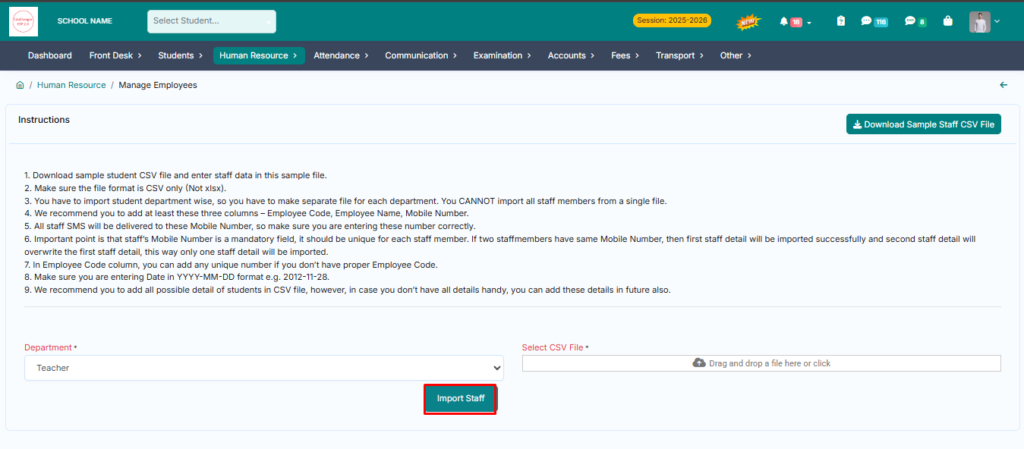
8. Select a department and upload your csv file then click on import staff.
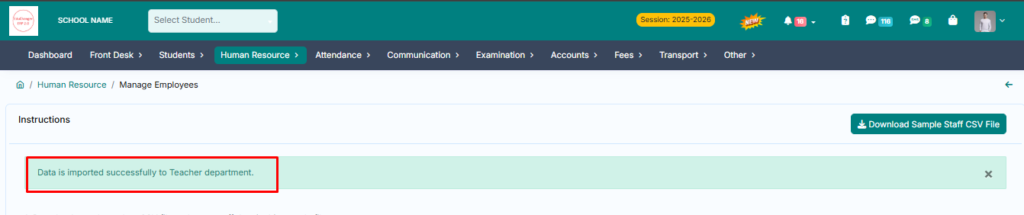
Congrats your staff data added successfully
> Now let’s move on to our next step of creating a section.
9. Go to Student Module.
10. Click on Section.
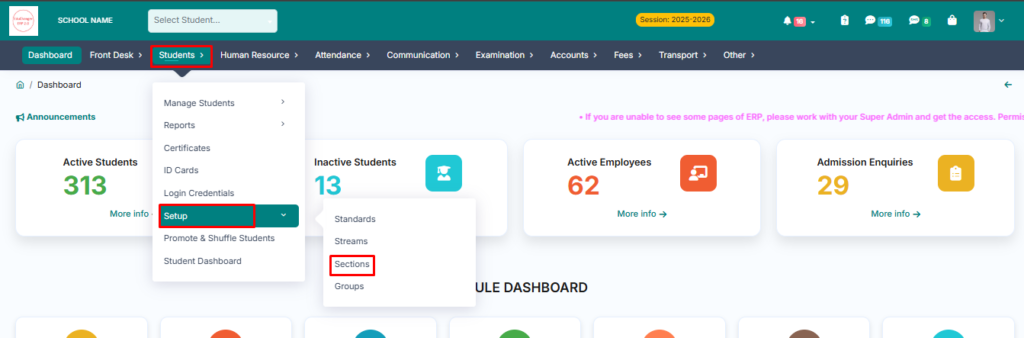
11. Fill the form and click on save button.
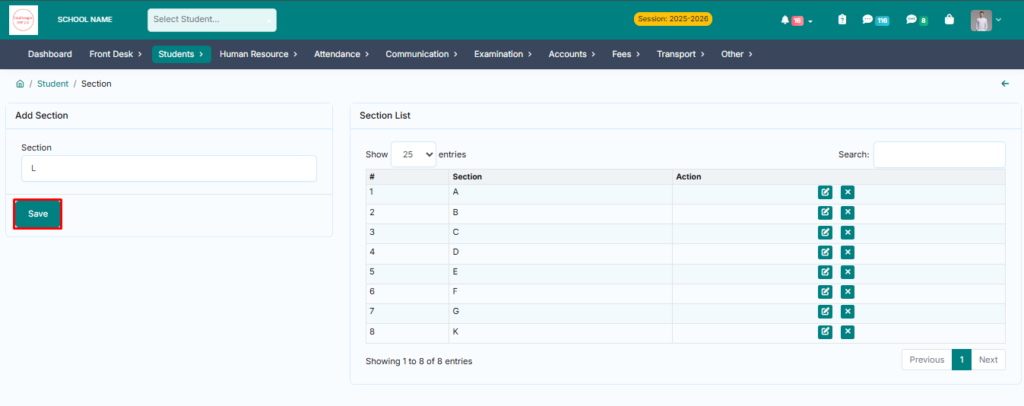
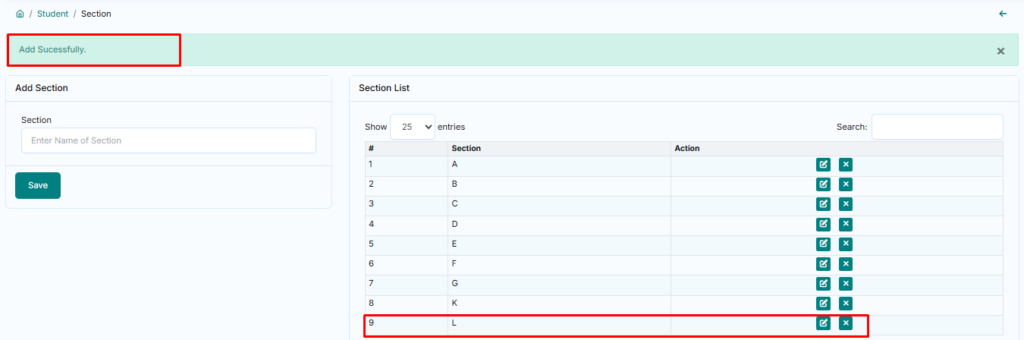
Congrats your section added successfully.
> Now let’s move on to our next step of creating a standard.
12. Go to Student Module.
13. Click on Standards.
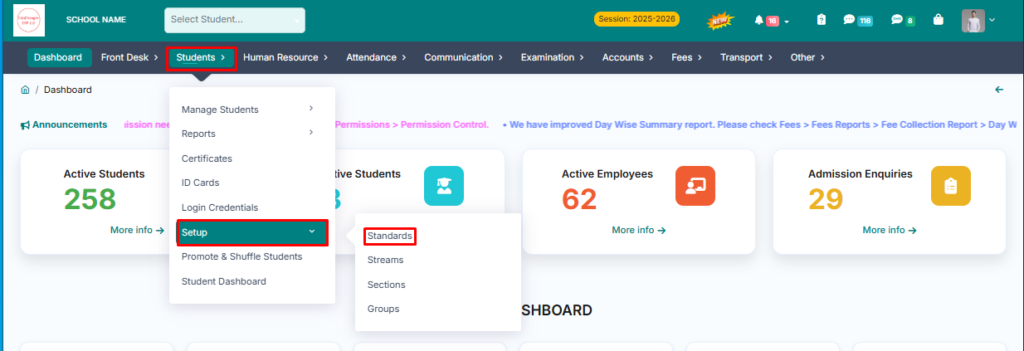
14. Click on Add Standards and fill the Form.
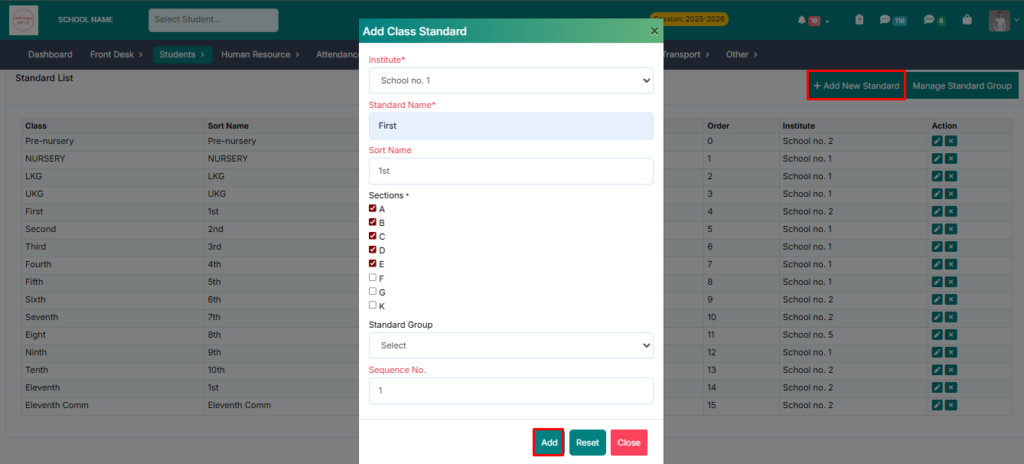
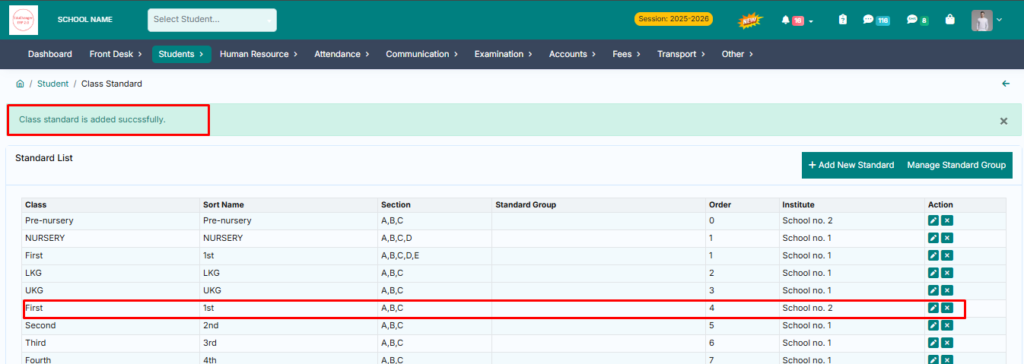
Congrats your standard added successfully.
> Now let’s move on to our next step of student data upload.
15. Go to Student Module.
16. Click on Active Student.
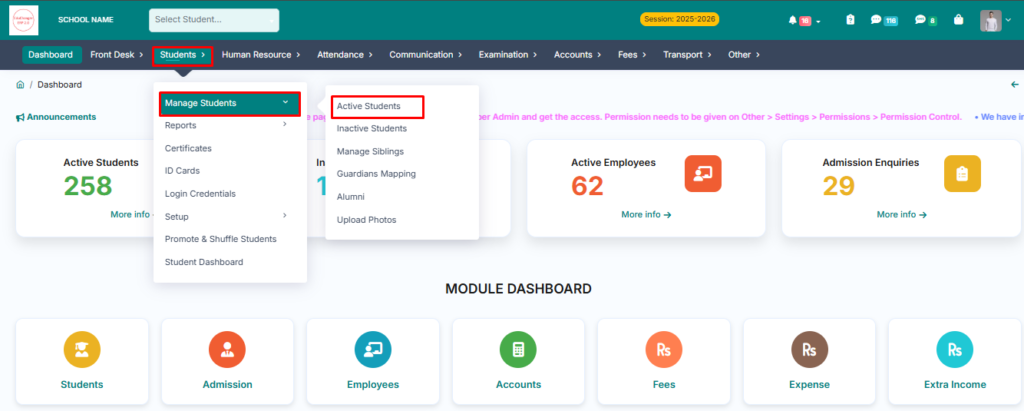
17. Click on Import Student.
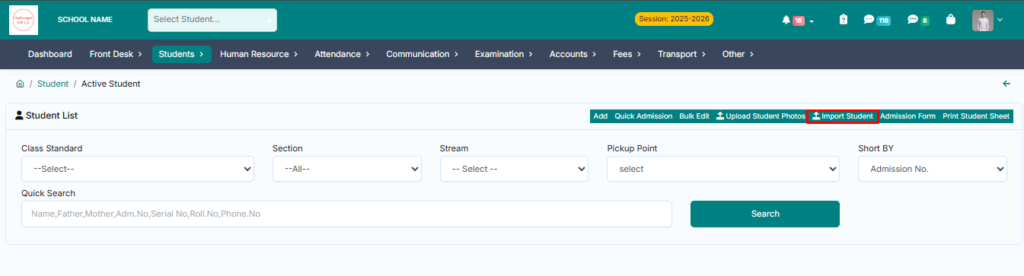
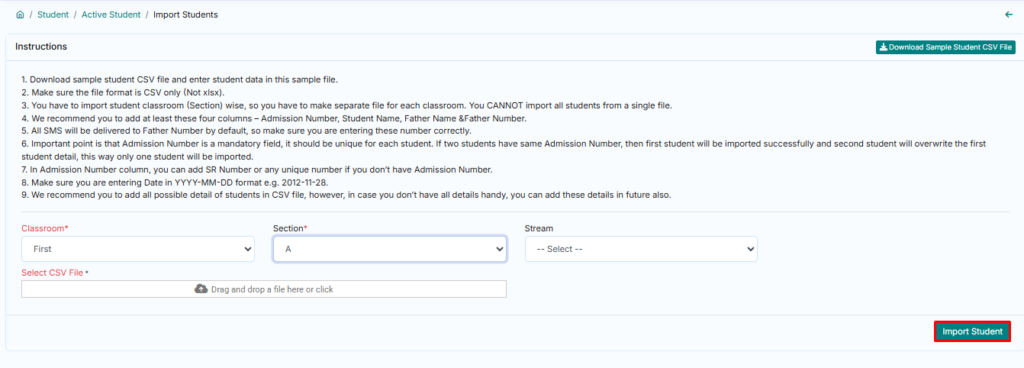
> Downloand student sample file and fill your student data e.g , Admission No. , Student Name , Mobile No , Father Name , Address , etc. save your file class wise.
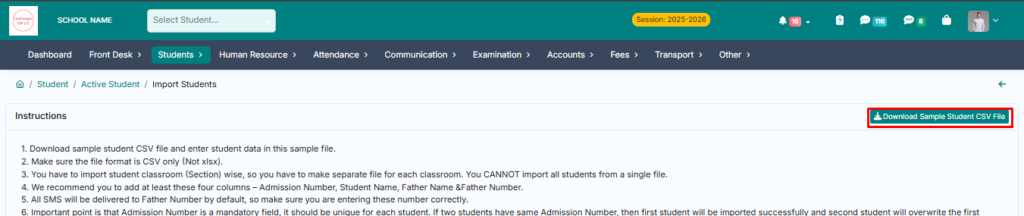
18. Select a class section and upload your csv file then click on import student.
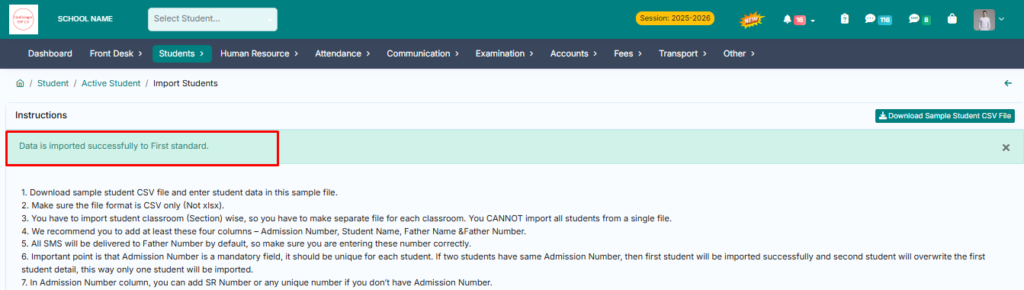
Congrats your student data added successfully.
> Now let’s move on to our next step of fees setup.
19. Follow this link to setup fees .
20. Follow this link to dues fees report.
https://educhanger.com/help/duee-fees-report/
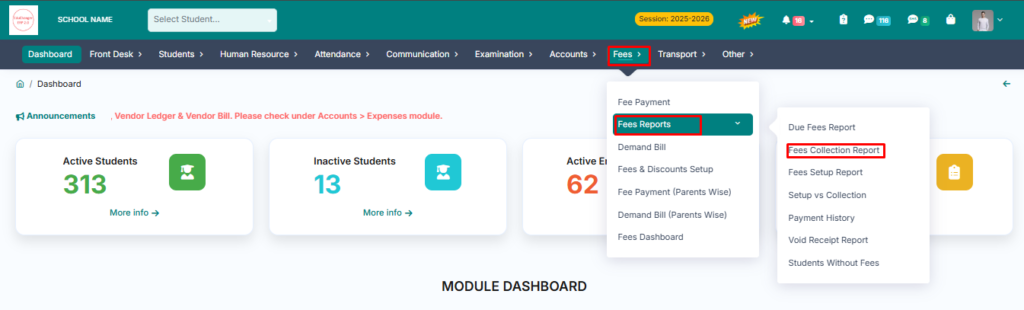
21. From here you can see fees collection reports.
22. Go to Fees Module.
23. Click on Fees Collection Report.
25. Select the date and click on search button.
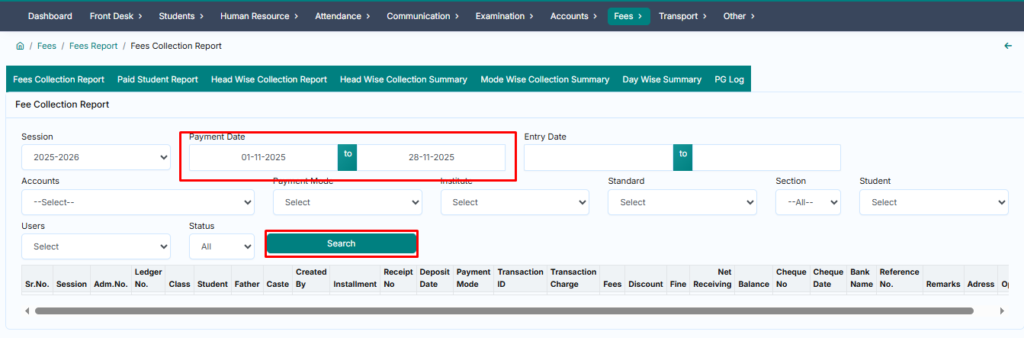
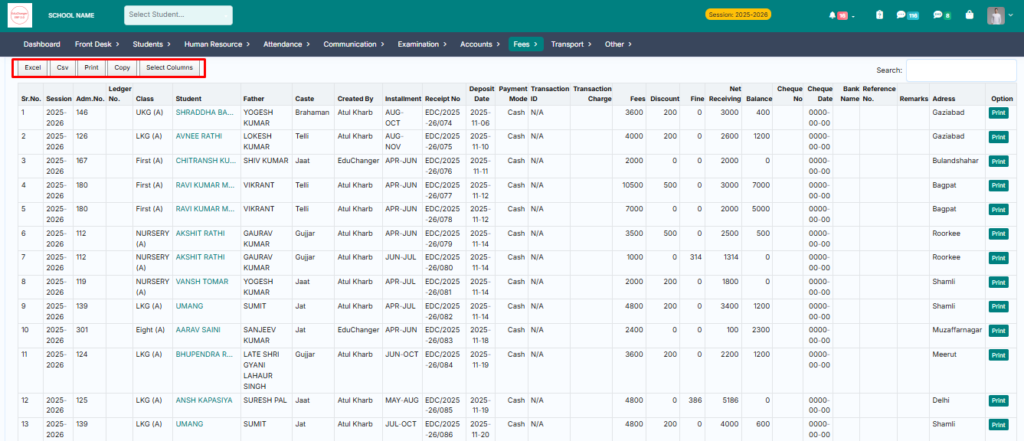
You will see your one month fees collection and you can also get its .csv file and pdf by clicking on the option given above.
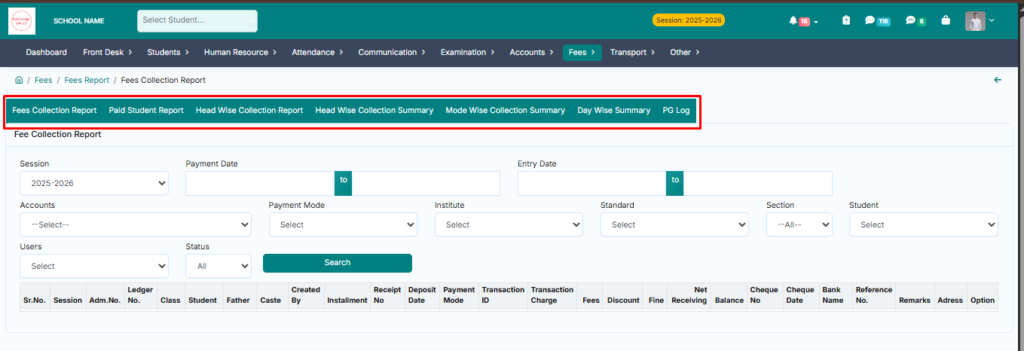
> Under Fees collection report, you also get other types of reports like paid student report, head wise collection report, head wise collection summary, mode wise collection summary, day wise summary.
For More Module's Help Click Here