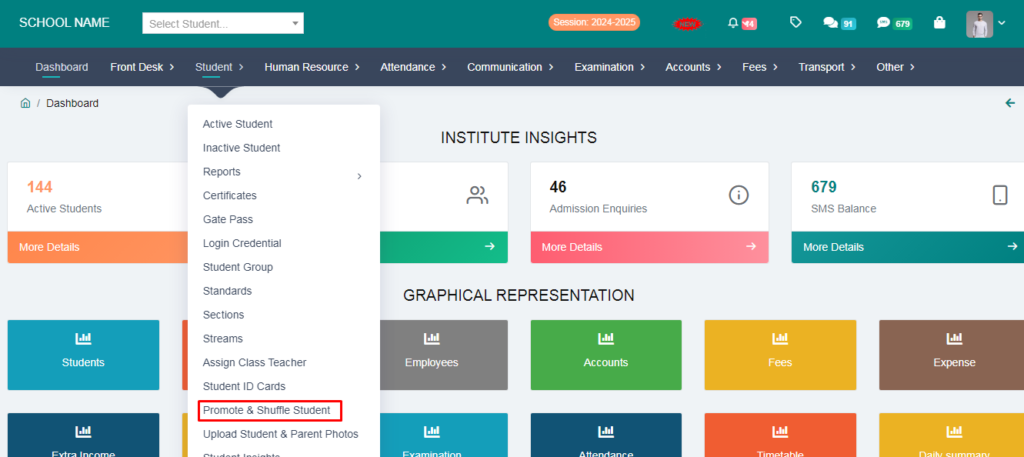
1. Go to Student module.
2. Click on Promote & Shuffle Student.
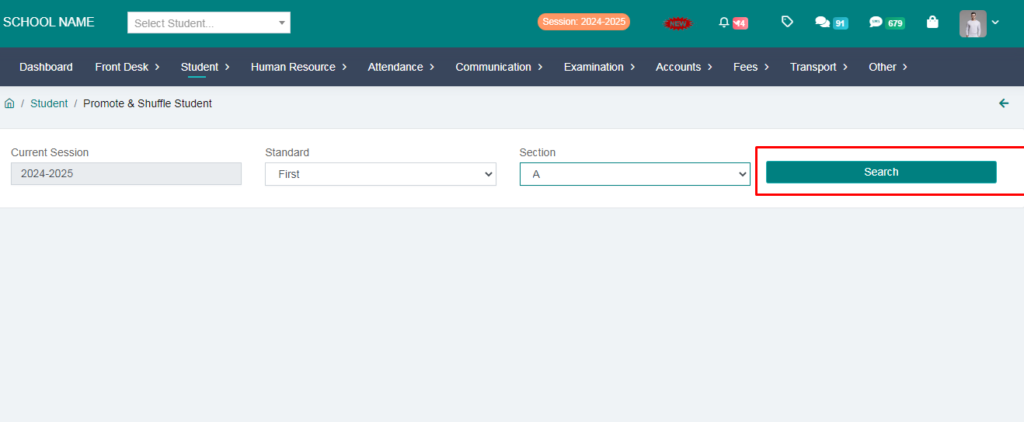
3. Select Current Session e.g. 2024-2025, select Standard e.g. “First”, select Section e.g. “A” and click on Search button.
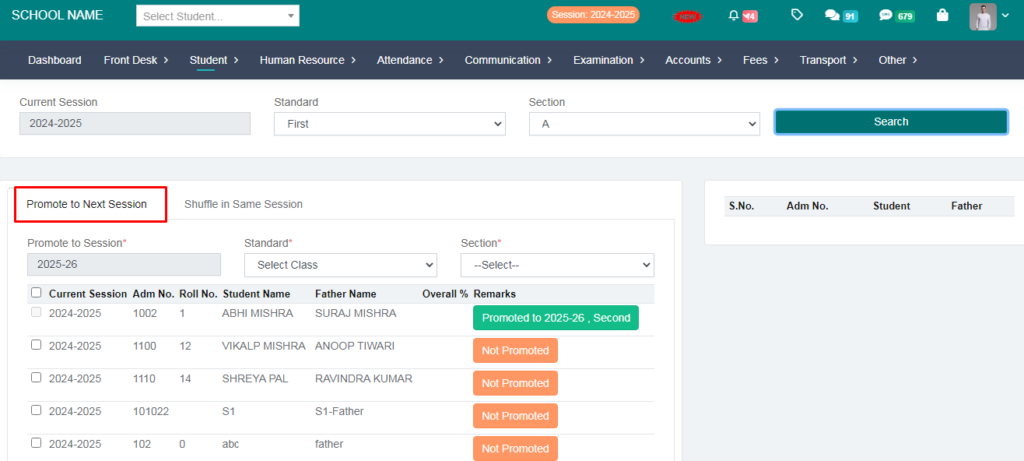
4. Make sure you are on Promote to Next Session tab. From this tab, you will be able to promote shown students to new session.
Note:-
- Shuffle in Same Session is used to shuffle students in current session only. DON’T USE THIS OPTION TO PROMOTE STUDENTS FROM ONE SESSION TO NEW SESSION.
- Promoted students will be shown in Green colour. Once a student is promoted, you cannot select it.
- You can select only those students which are highlighted in Orange colour.
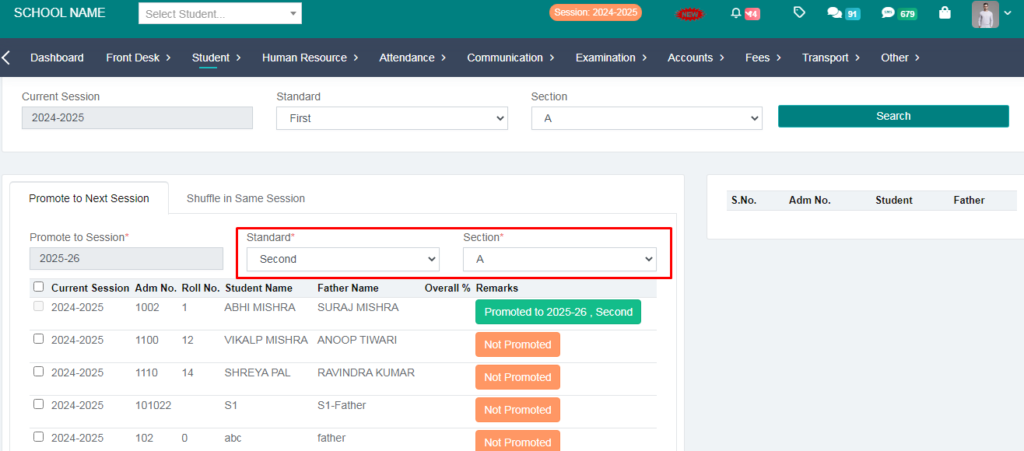
5. Here, you will see Next Session Name e.g. 2025-26, and select Standard e.g. Second and select Section.
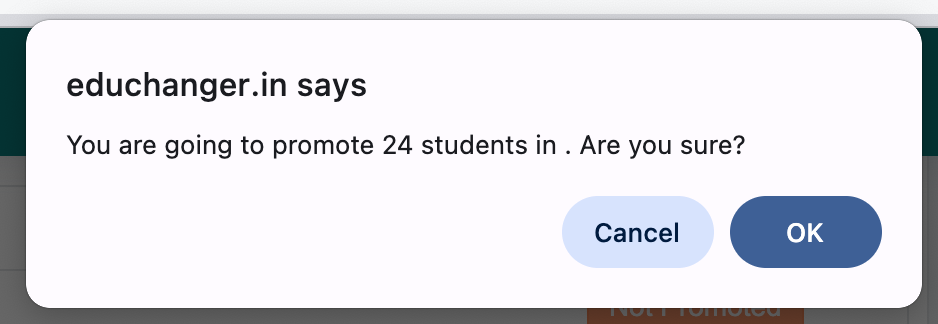
6. Select the students which are shown “Not Promoted” and click on Promote. It will show a confirmation message box. If you are sure, click on OK button.
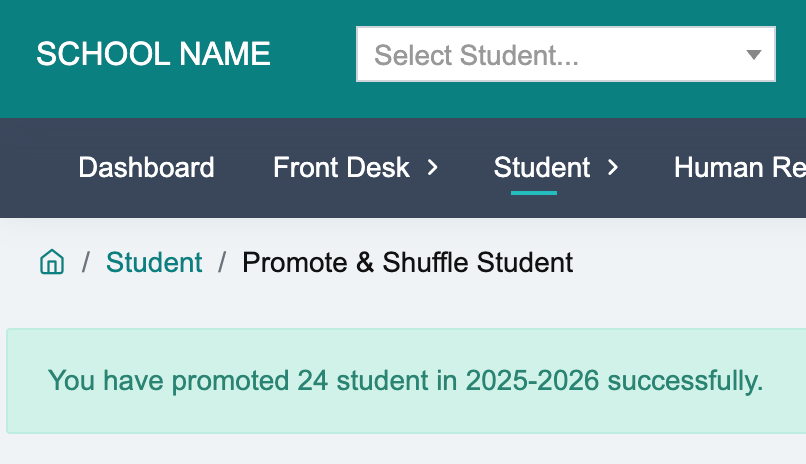
7. It will show this type of successful message.
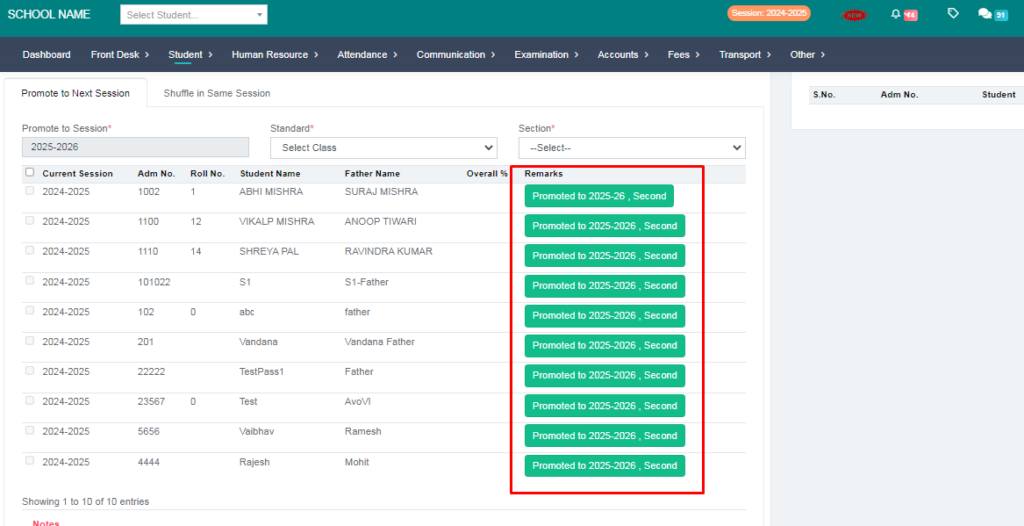
8. Now status will be changed to “Promoted to 2025-26, Second“.
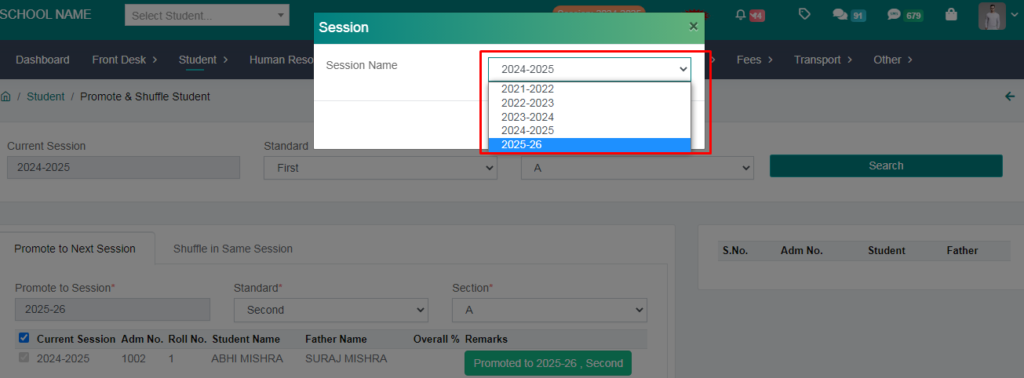
9. You can now verify if the students are promoted successfully. Switch to next session.
10. Go to Active Students page and filter the Standard & Section.
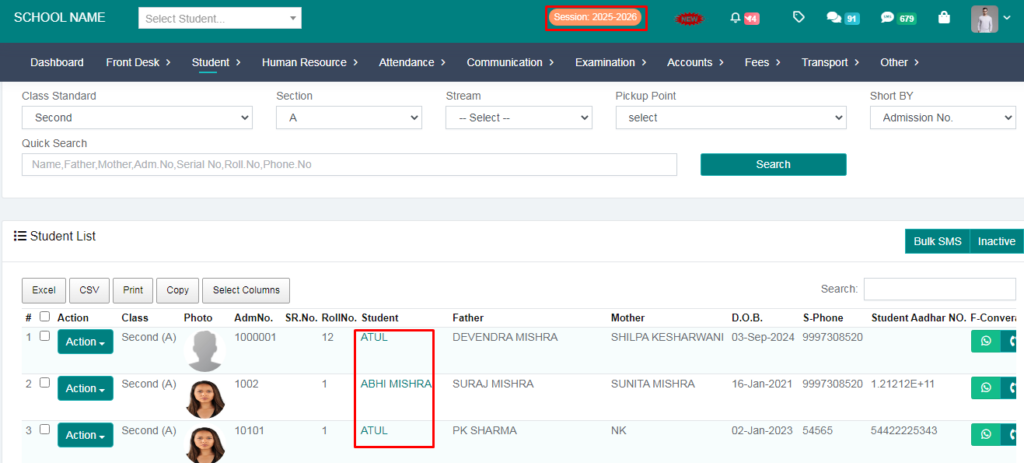
That’s it! Same way you can promote all students.